These instructions will allow you to browse through galaxies in your region of interest using TOPCAT , for example in Virgo.
Open the TAP Query Window.

Select the HEASARC service.
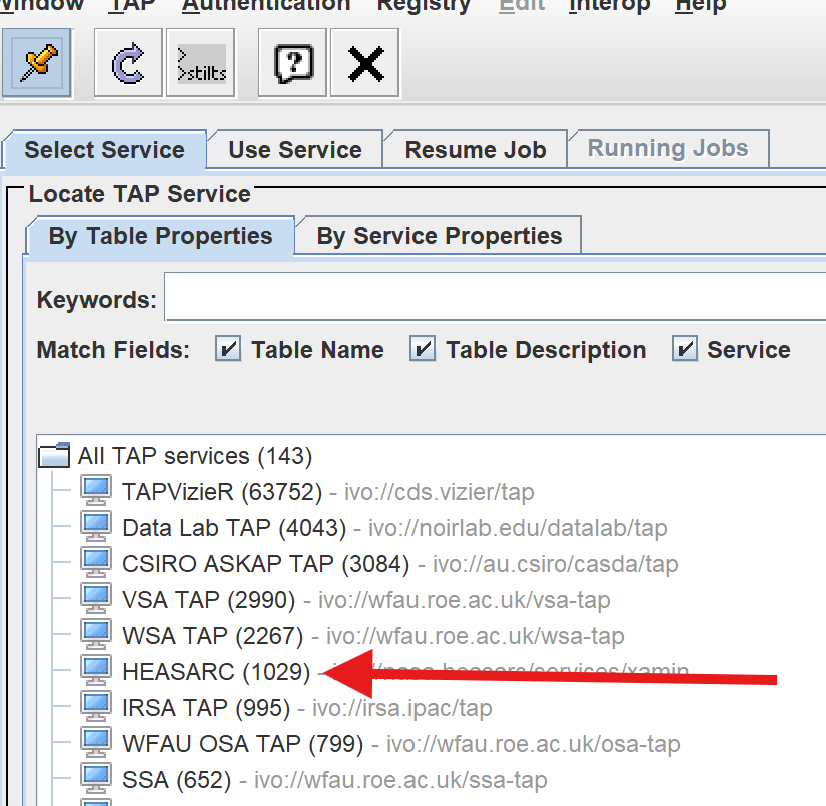
To search for galaxies whose major axis > 5 in Virgo(within 20 degrees), type the following ADQL text:
SELECT TOP 10000
    *
FROM ugc
WHERE 1=CONTAINS(
    POINT('ICRS', ra, dec),
    CIRCLE('ICRS', 187.697167, 12.338972, 20)
)
AND blue_major_axis > 5
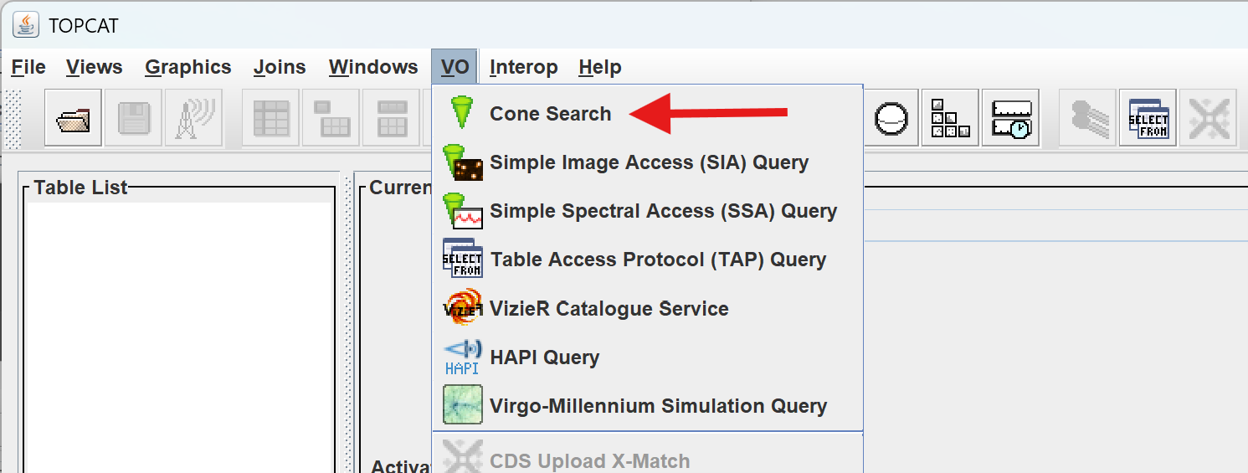
To obtain the RA and DEC coordinates for Virgo, in the main window, open Cone Search from the VO menu.
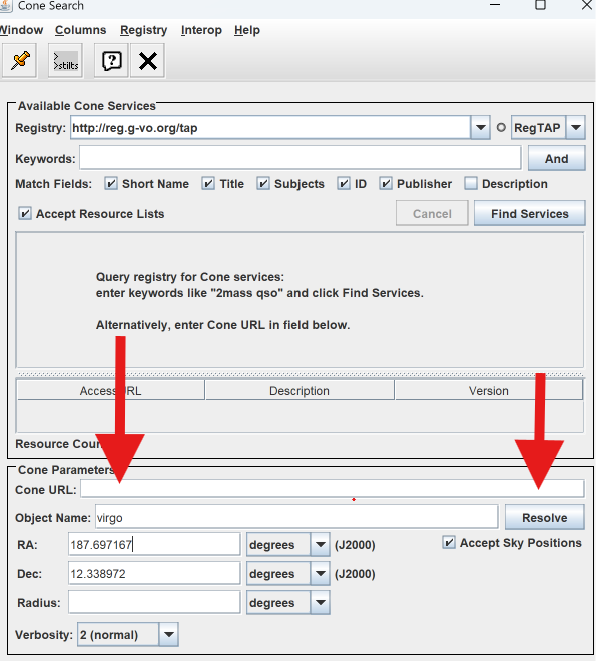
Type Virgo in Object Name and press Resolve.
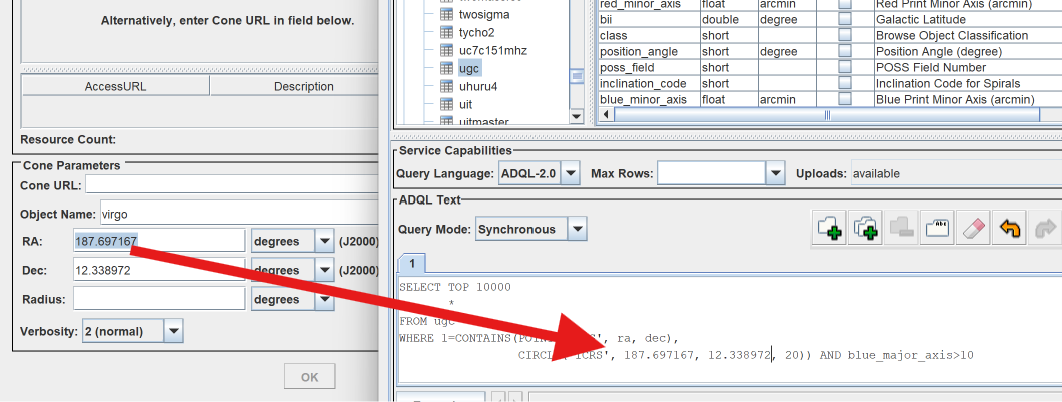
Manually copy the RA and Dec into the TAP Query text, then close the VO window.
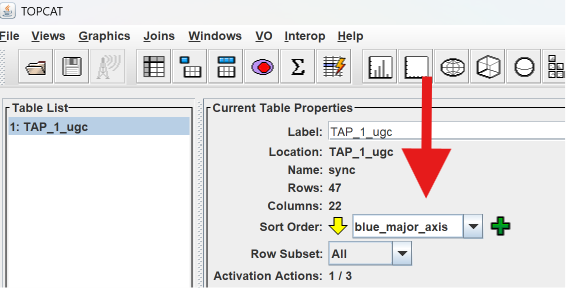
Run the query and close the TAP window. Then sort the resulting table by blue_major_axis in descending order.
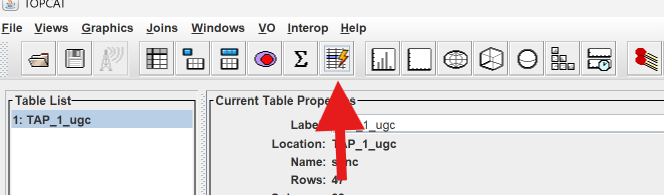
Next, open the Actions window.
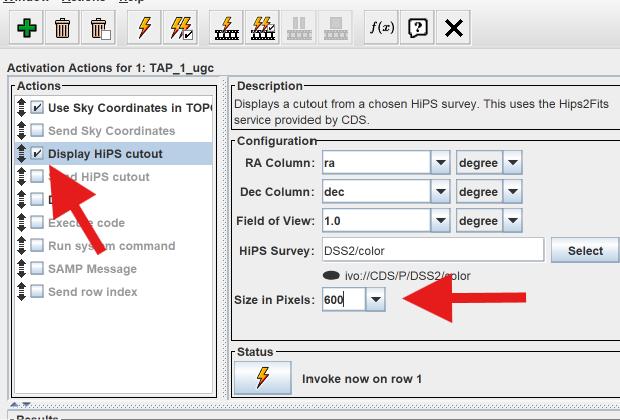
Check Display HIPS cutout and change Size in Pixels to 600. Then close the window.
Next, plot the galaxy positions on the Sky Plot.
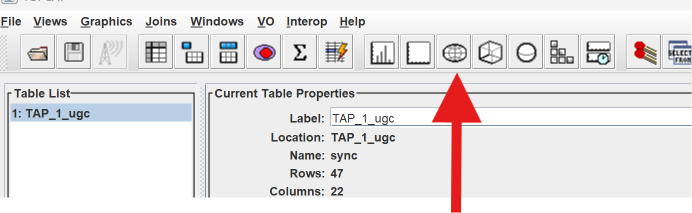
The default should display the positions in the equatorial system.
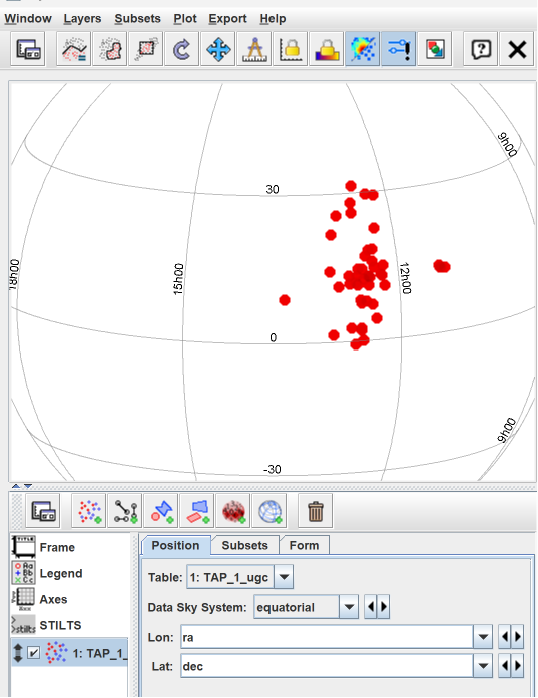
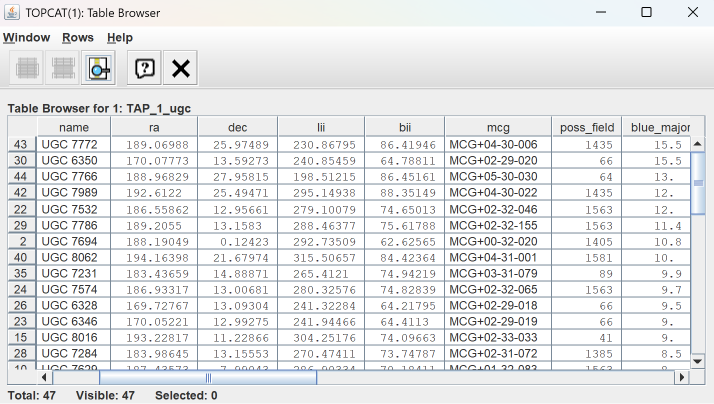
Double-click your table to open it. Check that it is ordered by the blue_major_axis column.
Click on the first row in your table. The action that you defined earlier will automatically trigger the display of the galaxy and also highlight the galaxy in the Sky Plot.
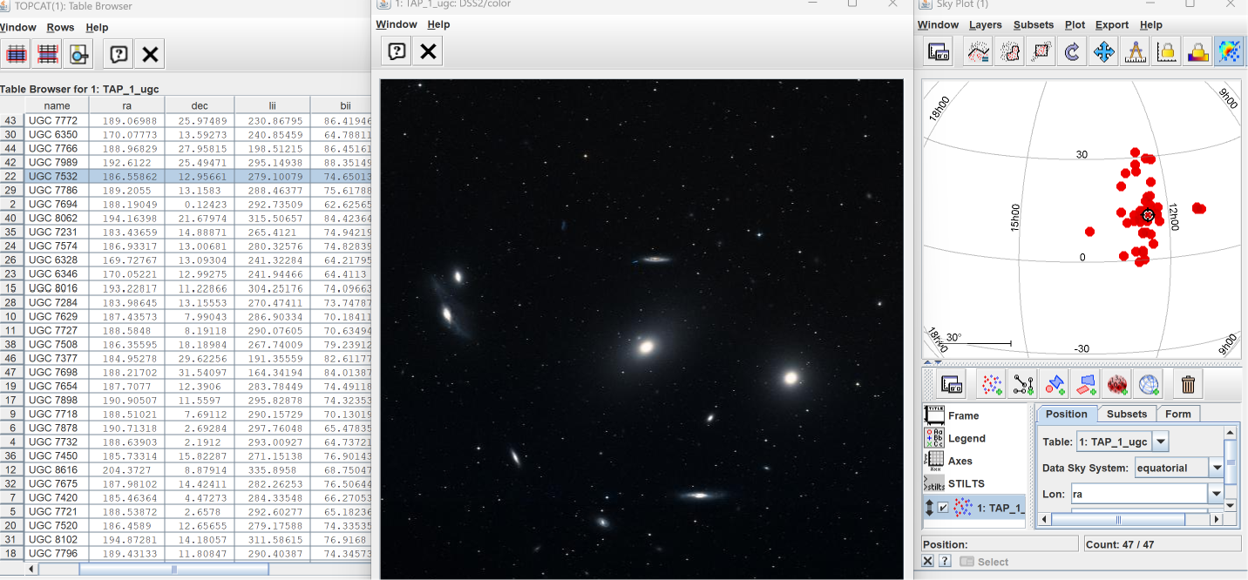
Continue to browse through your galaxies in Virgo by clicking on the rows in your table, or you can click on a galaxy in the Sky Plot. If you would like to look at a different region of the sky, repeat the instructions in this part, but choose to resolve the coordinates of your new object in the VO.